Plusvibe guide: the cold email workflow we run
Plusvibe guide to the cold email workflow we run: sending accounts, warm-up health, campaign limits, reply management, and follow-up. Book an intro call.

Plusvibe is the platform we run cold email campaigns through, for our own pipeline and for clients. This guide covers the workflow it supports end to end: connecting inboxes and keeping them healthy, setting daily limits that protect them, launching campaigns, reading reply data, and triggering follow-up automatically from lead labels.
We arrived here after running campaigns in Lemlist, Woodpecker, Instantly, and Smartlead. What decided it was not the sending. Every tool sends. It was that account health, warm-up, campaign analytics, an organized reply inbox, AI-assisted replies, and label-triggered follow-up sit in one place instead of four.
Why we run cold email through Plusvibe
Three things make it useful for outreach operations rather than just sequencing.
- The product team ships. Feedback that would materially improve the product gets taken seriously, and in our experience it gets built quickly.
- The AI reply manager is genuinely useful. It handles first responses against rules you define, which is the repetitive part of inbox work.
- Warm-up is configurable. The controls are straightforward to manage and expose settings that other sending tools keep hidden.
None of that is exotic. It matters because outreach at volume lives or dies on deliverability and reply handling, and those are the two areas most sequencers treat as an afterthought.
See the platform for yourself on the Plusvibe site, or read on for how we actually use it.
How do you keep sending accounts healthy?
Start in Email accounts. It lists every connected inbox, whether each one is fully configured, and whether warm-up has started. Sending volume is only worth anything if the inboxes underneath it stay healthy, so this screen comes before campaigns.
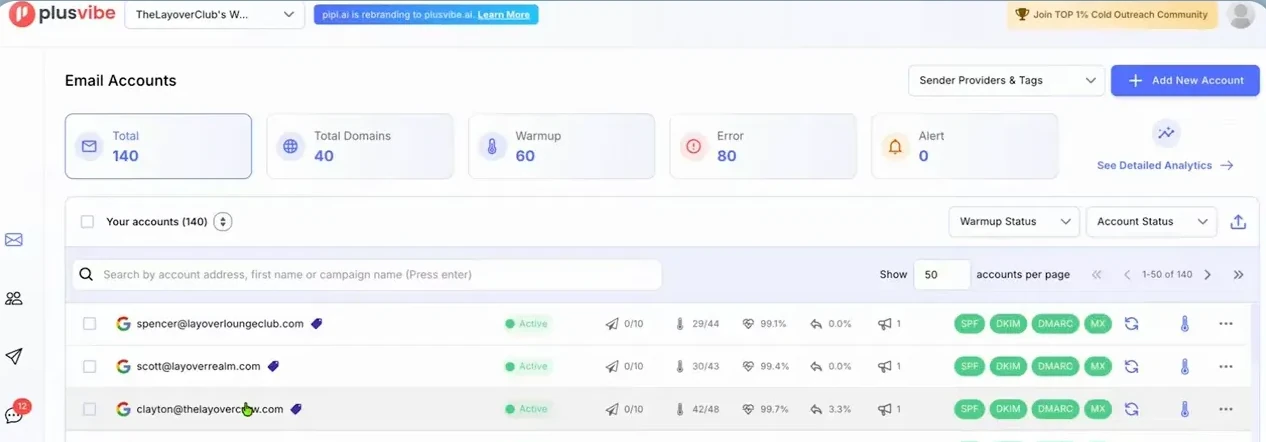
Each account carries a health score. When messages stop delivering or start landing in spam, that score should fall, which is your signal to look at the account before it drags the rest of the campaign down. You can open any individual account to compare its performance against the others and adjust its daily limit.
How many emails per day should one inbox send?
A Google Workspace inbox can technically handle 30 or 40 sends a day in some situations. We stay well under that. For campaigns where safety matters more than speed, we keep individual accounts below 15 emails per day and add inboxes instead of adding volume.
What should you track on the campaign dashboard?
The Campaigns screen lists active and completed campaigns with the metrics that tell you whether outreach is working, without opening a single inbox.
Per campaign you get:
- Leads in the campaign
- Completion progress
- Reply rate
- Positive reply rate
- Connected sending accounts
- Estimated time until the campaign finishes
That answers the four questions worth asking daily. Is the campaign moving? Are people replying? Are the replies positive? Is the sending capacity actually being used?
Why reply rate beats open rate
We do not track opens. Open tracking adds a pixel to a cold email and gives back a number that says nothing about whether the campaign is working. Reply rate and positive reply rate sit much closer to the outcome, which is a conversation.
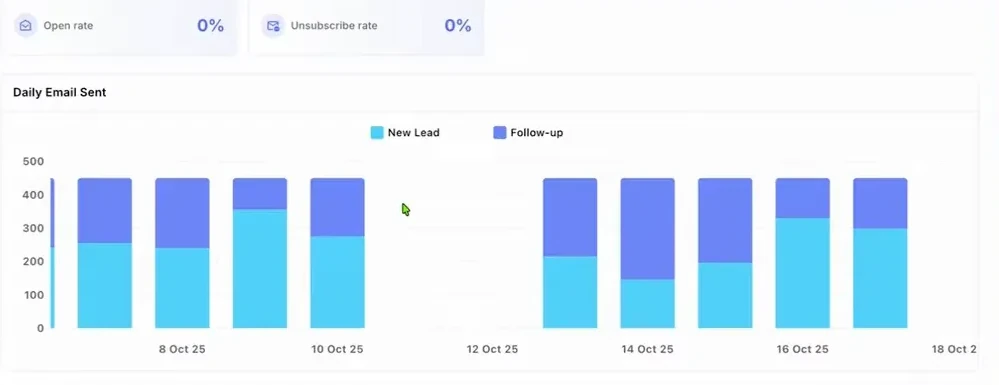
Campaign analytics also breaks performance down by sequence variation, so an A/B test tells you which version earned the replies. Our standard shape is deliberately plain: a first email, then one follow-up about two days later.
A sequence does not need to be clever to work. It needs a clear test, a meaningful measurement, and copy that improves on the basis of what came back.
How do you build a campaign?
Three steps, in this order.
- Upload leads. The contacts the campaign will reach.
- Build the sequence. The copy, and the follow-up steps.
- Set the schedule. Sending days, times, and volume limits.
Everything stays editable once the campaign is live, including lead priority, follow-up behavior, and the sending safety settings.
Account limit versus campaign limit
This is the distinction that trips people up, and getting it wrong is how you either throttle a campaign by accident or push an inbox past what it can carry.
| Account limit | Campaign limit | |
|---|---|---|
| What it caps | Emails one inbox sends per day | Emails one campaign sends per day |
| Scope | A single connected mailbox | Every account assigned to that campaign |
| Set it to | A number the inbox can sustain | The share of total capacity that campaign should get |
Two worked examples make it concrete.
With 60 sending accounts capped at 10 emails each, total capacity is 600 messages a day. Set the campaign maximum to 420 and the campaign sends 420, leaving 180 unused.
With 100 accounts at 10 emails each, capacity is 1,000. Cap one campaign at 500 and the system spreads roughly five emails per account for that campaign, while the remaining capacity stays available for another one.
That is what makes running several campaigns at once manageable. You allocate capacity deliberately rather than letting whichever campaign launched first consume everything.
How should the sending setup be configured?
Plain text, no open tracking, minimal HTML. The reason is deliverability: every tracking pixel and styled element moves a cold email further from what a normal one-to-one message looks like, and closer to what filters are built to catch.
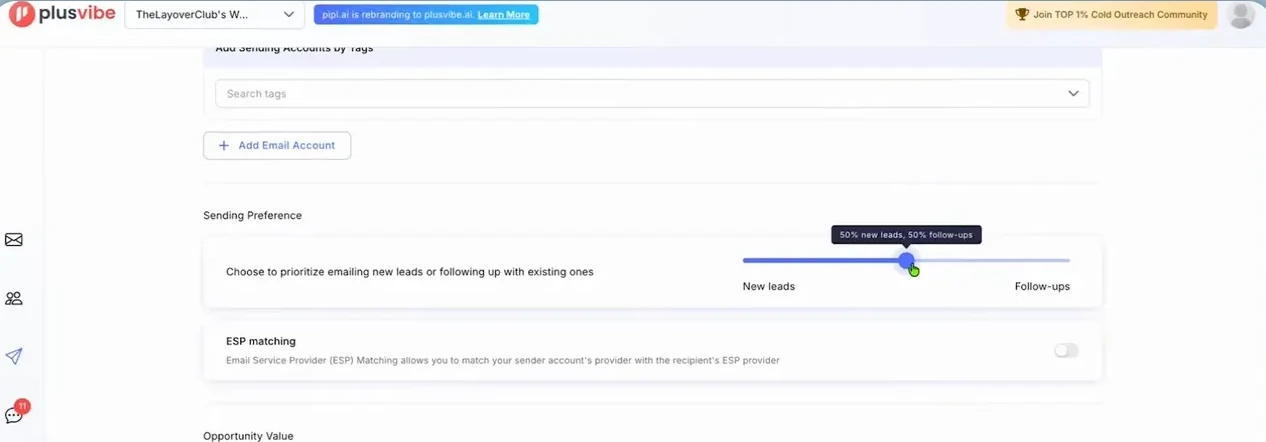
Two settings on this screen are worth knowing. The priority slider decides how sending capacity splits between new leads and follow-ups, and ESP matching pairs each sender account with a recipient on the same provider, which helps placement.
What happens when an inbox disconnects
You can set a campaign to reroute through another connected account when one disconnects, instead of stalling. It does not excuse you from investigating the disconnected inbox, but it stops one account problem from halting an entire campaign.
How do you manage replies at volume?
The unified inbox puts every reply across every campaign in one place. Replies get categorized automatically, and you can filter by campaign or label, which is what makes the screen usable once volume climbs.
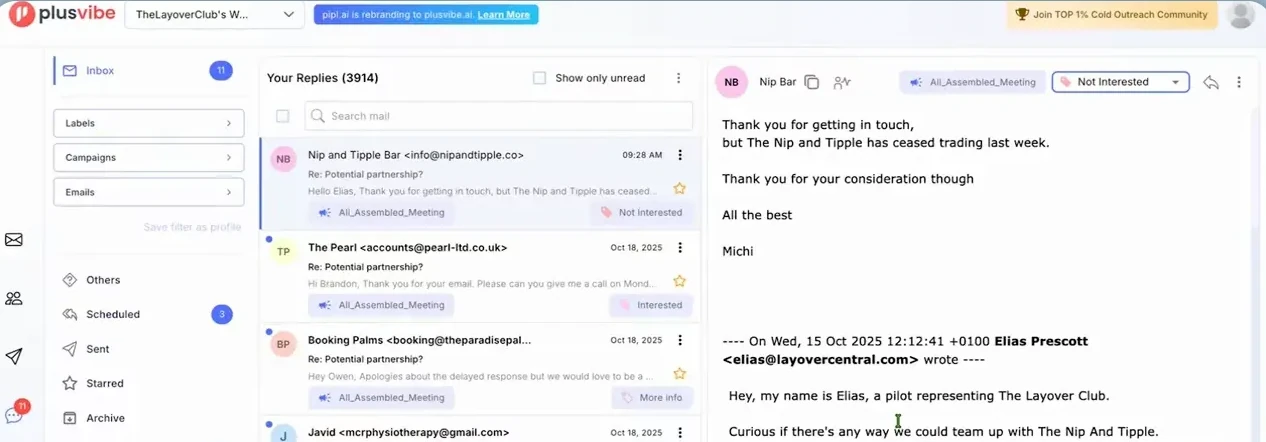
Filters also make delegation possible. With several campaigns or several people handling replies, you can assign someone a specific campaign, lead group, or reply category rather than having everyone work the same queue.
Where the AI reply manager fits
It is strongest on first responses. You define the rules it answers within, so the system has boundaries instead of improvising. The point is not to take judgment out of sales conversations. It is to clear the repetitive first replies quickly and keep the conversations that matter under human control.
How do subsequences automate follow-up?
A subsequence is a separate sequence that starts when a lead receives a particular label. It turns lead status into action.
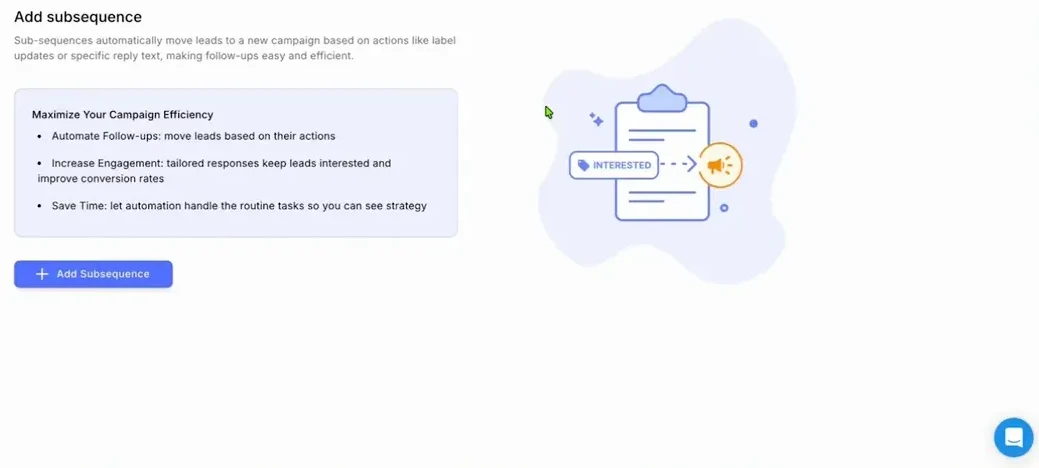
The pattern we use most:
- A prospect replies with interest.
- You call them.
- They do not pick up.
- You apply a No pickup label.
- The follow-up sequence for that label starts on its own.
Nobody has to remember what happens after a missed call, because the label already decided. Build these around the statuses your team already uses and the follow-up stops depending on anyone’s memory.
The workflow, start to finish
Setting up from scratch, in order:
- Connect your sending accounts and start warm-up.
- Watch account health and open with conservative daily limits.
- Upload a clean, verified lead list.
- Write a short plain-text sequence with one logical follow-up.
- Set a campaign cap that fits the capacity you actually have.
- Read analytics on replies and positive replies.
- Work the conversations in the unified inbox.
- Give the AI reply manager rules for first responses.
- Build subsequences for the statuses that matter, starting with interested and no pickup.
Is Plusvibe the right tool for you?
If you are running outreach at any real volume, the thing to look for is not the longest feature list. It is control: over account health, over how much each campaign sends, over what happens to a lead after they reply. That is why this is the platform we run on. Account limits, capacity allocation, reply categorization, and label-triggered follow-up cover the parts of outreach that break when volume grows.
If you would rather not run any of it yourself, that is what our done-for-you cold email service is: the same infrastructure, list building, copy, and reply handling, operated by us, with meetings landing in your calendar.
Start a Plusvibe account if you want to run it in-house.
Frequently asked questions
What is the difference between an account limit and a campaign limit?
An account limit caps how many emails a single inbox sends per day. A campaign limit caps how many emails one campaign sends per day across every account assigned to it. The account limit protects the mailbox. The campaign limit decides how your total sending capacity is divided between campaigns.
Why track reply rate instead of open rate?
Replies and positive replies are the outcomes cold email exists to produce, and open tracking adds a tracking pixel that gives you nothing in return. We send without open tracking, so reply rate and positive reply rate are the numbers we judge a campaign on.
How do Plusvibe subsequences work?
A subsequence is a separate email sequence tied to a label. When a lead gets that label, the sequence starts for them automatically. Label someone No pickup after an unanswered call and their follow-up sequence begins without anyone remembering to send it.
How many cold emails per day should one inbox send?
There is no single safe number, because it depends on the domain history, warm-up state, list quality, copy, and how people engage. We keep individual inboxes under 15 emails a day and add inboxes rather than volume, which is the conservative end of what a Google Workspace mailbox can technically handle.
Disclosure: the Plusvibe links on this page are affiliate links, so we earn a commission if you sign up through one, at no extra cost to you. It does not change anything written above. The workflow described here is the one we run.